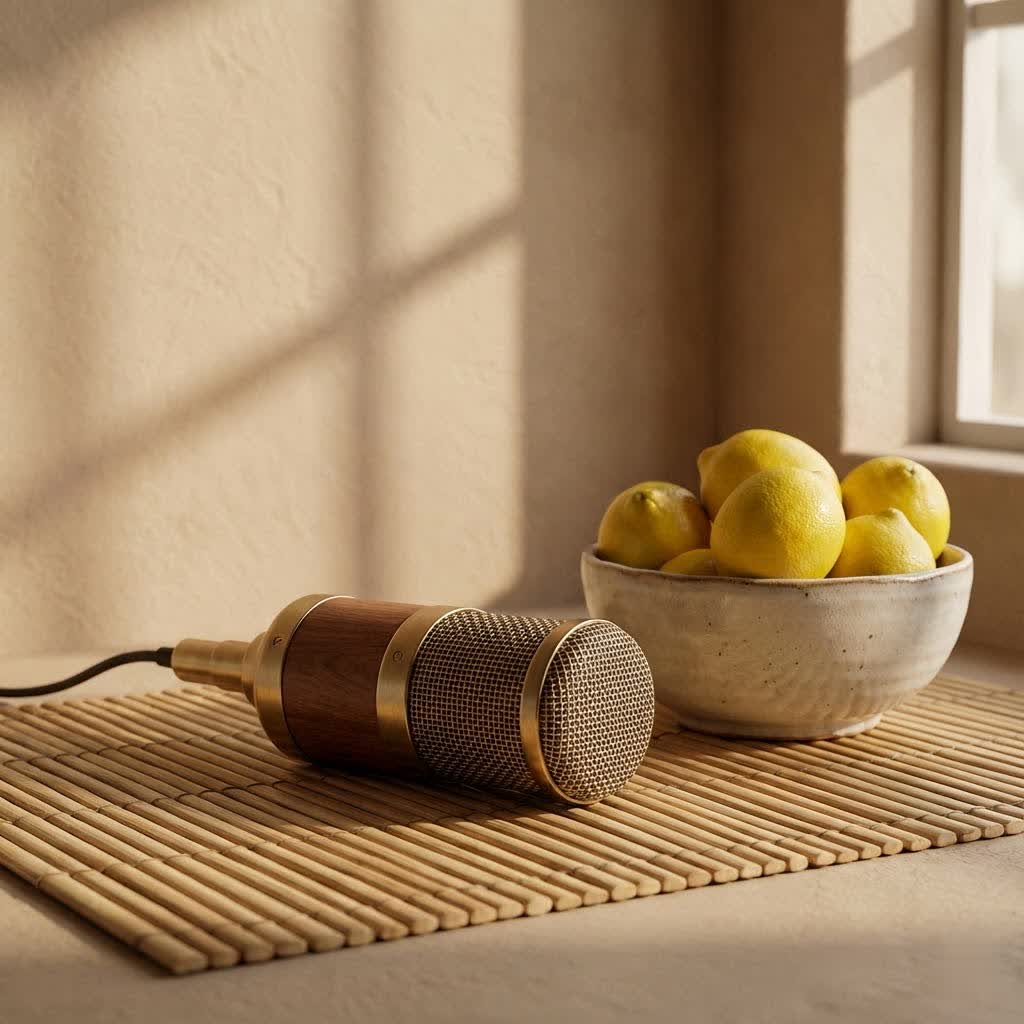
Ready to make your voice truly heard? Whether you’re battling foes in the latest game, captivating an audience on Twitch, recording your next podcast masterpiece, or laying down crystal-clear vocals, upgrading your PC’s audio with a dedicated studio microphone is a game-changer. Forget tinny, muffled sound – it’s time to unlock professional-grade clarity and presence right from your desktop. At Tmava.com, we believe that superior sound shouldn’t be a mystery, and with this guide, we’ll walk you through everything you need to know about selecting, connecting, optimizing, and maintaining the perfect studio mic for your PC setup.
Understanding Studio Microphones: Your PC’s New Voice
Before diving into specific models, let’s break down the fundamental types of microphones you’ll encounter and how they interact with your PC. Each has its unique strengths, and choosing wisely is the first step to stellar sound.
Common Types of Studio Mics for PC Users
-
Condenser Microphones:
These are the darlings of professional studios for a reason. Condenser microphones are incredibly sensitive, designed to capture every subtle nuance of your voice or instrument. They deliver a rich, detailed, and expansive sound that’s perfect for vocals, acoustic instruments, and podcasts where clarity is paramount.- Pros: Exceptional sound fidelity, wide frequency response, captures subtle details.
- Cons: Highly sensitive to ambient noise (think keyboard clicks, room echo, air conditioning), often requires an external power source (phantom power) for XLR models, and benefit greatly from acoustically treated spaces.
- USB vs. XLR Condensers: Many popular “studio mics for PC” are USB condensers, offering plug-and-play simplicity. XLR condensers, on the other hand, connect via an audio interface, providing more control and a clearer upgrade path.
-
Dynamic Microphones:
If you’re in a less-than-perfect acoustic environment or need a microphone that can handle high sound pressure levels without distortion, a dynamic mic is your reliable workhorse. They are less sensitive than condensers, making them excellent at rejecting background noise and focusing on the sound source directly in front of them.- Pros: Durable, handles loud sounds well, excellent at rejecting unwanted background noise, often doesn’t require phantom power.
- Cons: Less detailed and nuanced sound compared to condensers, typically a narrower frequency response.
- Ideal for: Gamers, streamers in noisy rooms, powerful vocalists, and live performances. Some newer dynamic mics also offer hybrid USB/XLR connectivity.
|
Our Picks for the Best Studio Mic in 2026
As an Amazon Associate I earn from qualifying purchases.
|
||
| Num | Product | Action |
|---|---|---|
| 1 | Shure SM4 Studio Recording Microphone Kit, XLR Home Studio Condenser Mic with Mix-Ready Audio - All-Metal Construction, Includes Detachable Magnetic Pop Filter & Shock Mount (SM4-K-KIT) |

|
| 2 | Shure SM7B Vocal Dynamic Microphone – XLR Studio Mic for Podcasting, Recording, Broadcasting, Streaming & Gaming – Smooth, Warm Sound, Rugged Build, Detachable Windscreen, Wide Frequency Range, Black |
|
| 3 | Audio-Technica AT2020 Cardioid Condenser Studio XLR Microphone, Ideal for Project/Home Studio Applications, Black |
|
| 4 | USB Microphone, MAONO 192KHZ/24Bit Plug & Play PC Computer Podcast Condenser Cardioid Metal Mic Kit with Professional Sound Chipset for Recording, Gaming, Singing, YouTube (AU-A04) |
|
| 5 | Studio Recording Microphone Isolation Shield with Pop Filter and Metal Tripod Stand, Studio Mic to PC Laptop Smartphone, Music Microphone for Recording Singing Podcasting |
|
| 6 | Upgraded Studio Recording Microphone with Isolation Shield & Pop Filter - Music Condenser Mic for Podcasting, Singing, Home Studio - Sound for PC, Laptop, Smartphone |
|
| 7 | RØDE NT1 5th Generation Large-diaphragm Studio Condenser Microphone with XLR and USB Outputs, Shock Mount and Pop Filter for Music Production, Vocal Recording and Podcasting (Black) |
|
| 8 | Condenser Microphone,PC Computer Podcast USB Condenser Microphone Cardioid Metal Mic Kit for Recording, Podcasting, Home Studio, YouTube, Black, BM-800 |
|
| 9 | RØDE NT1 Signature Series Large-Diaphragm Condenser Microphone with Shock Mount, Pop Filter and XLR Cable for Music Production, Vocal Recording, Streaming and Podcasting (Black) |
|
| 10 | AKG Pro Audio P120 - Affordable 2/3-Inch Diaphragm Condenser Microphone for Clear Vocals & Instruments. Studio Recording or Live. XLR Connector. Black |
|
USB vs. XLR: Which Connection is Right for Your PC?
This is often the first big decision you’ll face when looking for a Studio Mic For Pc. Both have distinct advantages depending on your needs and experience level.
-
USB Microphones:
- The Accessible Vanguard of PC Audio: USB microphones are the undisputed champions of plug-and-play simplicity. They integrate the microphone capsule, a preamplifier, and an analog-to-digital converter into a single unit. You simply plug them into your PC’s USB port, and often, you’re ready to go.
- Pros: Incredible ease of use, no need for additional equipment, highly portable, great for beginners, streamers, and casual recordings.
- Cons: Generally offer less flexibility and upgrade potential than XLR setups, and the built-in audio processing can be limited.
- Popular choices: Blue Yeti, HyperX QuadCast, FIFINE T669, and Razer Seiren Mini are fantastic examples of “studio mic for PC” options with USB connectivity.
-
XLR Microphones:
- The Professional’s Choice: XLR microphones are the standard in professional recording studios, offering superior sound quality and incredible versatility. However, they require an additional piece of hardware: an audio interface or a mixer with a built-in interface to connect to your PC.
- Pros: Professional-grade audio quality, greater control over gain and signal processing, robust build, and a clear pathway for future upgrades to your audio setup.
- Cons: Requires extra equipment (audio interface), a more involved setup process, and many condenser XLR mics need 48V phantom power from the interface.
- Consider for: Serious podcasters, musicians, voiceover artists, or anyone who values ultimate control and the highest possible sound quality. Hybrid USB/XLR mics like the Shure MV7 offer the best of both worlds.
“Choosing the right studio mic for your PC isn’t just about sound quality; it’s about matching the microphone to your environment and use case. A well-chosen budget USB mic can outperform a high-end XLR mic in an untreated room if you know how to optimize your setup.” – Ethan Vance, Senior Audio Engineer at Tmava Studios.
Setting Up Your Studio Mic for PC: From Box to Broadcast
Getting your new studio mic up and running optimally involves more than just plugging it in. Here’s a step-by-step guide to ensure you’re capturing the best possible sound.
Initial Connection and Driver Installation
-
For USB Microphones:
Simply plug your USB microphone into an available USB port on your PC. Most modern operating systems (Windows, macOS) will automatically detect and install the necessary drivers. You might need to visit the manufacturer’s website for specific software or firmware updates. -
For XLR Microphones (via Audio Interface):
- Connect your XLR microphone to an input on your audio interface using an XLR cable.
- Connect your audio interface to your PC via a USB cable.
- Install the dedicated drivers and control software for your audio interface from the manufacturer’s website. This is crucial for proper functionality and low latency.
- Phantom Power Alert: If you’re using an XLR condenser microphone, your audio interface will need to supply 48V phantom power. Locate the “48V” or “Phantom Power” button on your interface and enable it. Crucial rule: Always connect and disconnect your XLR microphone before turning phantom power on or off to prevent potential damage to your microphone or interface.
Optimizing Windows Sound Settings
Once connected, tell your PC which microphone to listen to.
- Select Default Device: Right-click the speaker icon in your taskbar and select “Sound Settings.” Under “Input,” choose your newly connected studio microphone as the default device.
- Adjust Input Volume (Gain): Click on your microphone device and find the “Device properties” or “Input volume” slider. Start around 70-80 and test it. You want your voice to be clear and strong without “peaking” (where the audio distorts due to being too loud).
- Disable Enhancements: In the “Sound Control Panel” (often found via “More sound settings” in Windows 10/11), navigate to the “Recording” tab, right-click your mic, select “Properties,” and then the “Enhancements” tab. It’s often best to disable all enhancements here, as they can sometimes introduce unwanted processing or latency.
Essential Accessories for Your PC Studio Mic Setup
These often-overlooked additions can drastically improve your sound quality.
- Pop Filter: This mesh screen, placed between you and the microphone, is your first line of defense against plosives – those harsh “P” and “B” sounds that can create an unpleasant “popping” noise in your audio.
- Shock Mount: A good shock mount isolates your microphone from vibrations transmitted through your desk or mic stand. This prevents annoying thumps, bumps, and keyboard noise from making their way into your recording.
- Boom Arm/Mic Stand: Getting your microphone into the ideal position (usually 6-8 inches from your mouth) is critical. A quality boom arm or sturdy mic stand allows for precise placement and keeps the microphone off your desk, further reducing unwanted vibrations.
- Headphones: For critical monitoring, you need a good pair of headphones. They allow you to hear exactly what your microphone is picking up in real-time, helping you catch and correct issues like background noise, gain problems, or bad mic technique before you go live or record.
Professional Audio Processing for Your PC Mic
Achieving that polished “studio sound” for your PC mic often involves a bit of software wizardry. Even the best microphone can benefit from these enhancements.
Software Solutions to Enhance Your Sound
Modern software can transform your raw audio into something truly professional.
- Noise Suppression: Tools like SteelSeries GG Sonar, NVIDIA Broadcast (for compatible GPUs), and Krisp use AI to intelligently remove unwanted background noise such as keyboard clicks, fan hum, or ambient room chatter. This is a lifesaver for streamers and gamers in less-than-ideal environments.
- Equalization (EQ): EQ allows you to shape the tonal characteristics of your voice. You can boost certain frequencies to add warmth or clarity, or cut others to reduce harshness or muddiness. Think of it as a sophisticated tone control.
- Compression: This process helps to reduce the dynamic range of your audio, making quiet parts louder and loud parts quieter. The result is a more consistent, “present” vocal that sits better in a mix and is easier for your listeners to follow.
- Noise Gate: A noise gate automatically mutes your microphone input when the sound level drops below a certain threshold. This is incredibly effective for eliminating background noise during silent moments when you’re not speaking.
For advanced recording, Digital Audio Workstations (DAWs) like Audacity (free), OBS Studio (for streaming and recording), or more professional options like Ableton Live or FL Studio offer comprehensive tools for applying these effects and more.
Microphone Placement Techniques for PC Users
Even with the best gear and software, poor mic placement can ruin your sound.
- Distance is Key: Aim to place your microphone about 6 to 8 inches (15-20 cm) from your mouth. This “sweet spot” ensures optimal clarity, warmth, and presence without capturing too much room echo. Too far, and you’ll sound distant; too close, and you might get proximity effect (excessive bass) and plosives.
- Angle it Right: Instead of pointing the microphone directly at your mouth, try angling it slightly off-axis (e.g., pointing towards your chin or to the side). This often helps to minimize harsh plosives and sibilance (sharp “S” sounds).
- Mind Your Room Acoustics: While a dedicated studio mic for PC can do wonders, remember that microphones pick up everything. Hard, reflective surfaces (bare walls, desks) can cause echo. Soft furnishings, curtains, rugs, and even strategically placed bookshelves can help dampen reflections and improve your sound quality significantly.
Choosing the Perfect Studio Mic for Your PC Needs
With a myriad of options available, selecting the ideal studio mic for your PC can feel daunting. Let’s narrow it down based on common applications.
Best Studio Mics for PC Gaming and Streaming
For gamers and streamers, clarity, noise rejection, and ease of use are paramount.
- Blue Yeti: An iconic USB condenser, known for its versatility with multiple polar patterns (cardioid, omnidirectional, bidirectional, stereo), making it adaptable to various scenarios. It’s incredibly user-friendly and a great all-rounder for a “studio mic for PC” setup.
- HyperX QuadCast S: A popular choice for streamers, offering excellent sound quality, a built-in shock mount, a tap-to-mute sensor, and customizable RGB lighting for that gaming aesthetic. It’s a convenient USB condenser.
- FIFINE T669 / K688: These budget-friendly USB condensers provide exceptional value. They often come with a boom arm, pop filter, and shock mount, delivering impressive audio for their price point, making them a fantastic entry-level “studio mic for PC” option.
- NZXT Capsule Elite: Offers a clean, minimalist design with strong audio quality and a simple plug-and-play USB-C connection, ideal for streamers prioritizing pure sound and aesthetics.
Top Studio Mics for PC Podcasting and Voiceovers
For recording spoken word, detail, warmth, and consistent quality are crucial.
- Rode NT-USB+: An excellent USB condenser that offers broadcast-quality sound with a low noise floor. It delivers rich, detailed audio and includes a built-in pop filter and desktop tripod.
- Shure MV7: A hybrid USB/XLR dynamic microphone, this mic is a true powerhouse. It provides professional-grade sound with fantastic background noise rejection, making it superb for untreated rooms. The dual connectivity offers flexibility for both simple PC setups and more advanced audio interfaces.
- Audio-Technica AT2020 (XLR or USB-X): The XLR version is a classic entry-level large-diaphragm condenser, renowned for its clear, natural sound. It requires an audio interface. The AT2020USB-X offers similar quality with USB convenience.
- Rode NT1 Signature Series (XLR): A long-standing favorite, this large-diaphragm condenser delivers incredibly clean and transparent vocals, making it an exceptional choice for home studio recording, especially when paired with a good audio interface.
Budget-Friendly Studio Mic Options for PC
You don’t need to break the bank to get great sound.
- FIFINE K688 / T669: As mentioned, these USB microphones consistently punch above their weight, offering impressive clarity and comprehensive accessory bundles for a low cost.
- Maono PD200X: This dynamic USB/XLR microphone offers excellent sound quality with a low noise floor, often competing with more expensive options. It’s great for rejecting keyboard noise.
- Samson Q2U: A highly recommended hybrid USB/XLR dynamic microphone, offering versatility and good sound quality for its price. It’s an excellent choice for those wanting the option to upgrade to an audio interface later.
- Razer Seiren Mini / HyperX SoloCast: Ultra-compact USB condensers that deliver surprisingly good audio for their small size and affordable price, ideal for minimalist setups.
Maintaining Your Studio Mic for Longevity
A studio microphone is an investment. Proper care ensures it performs beautifully for years to come.
Cleaning and Storage Best Practices
- Regular Wiping: Use a soft, dry microfiber cloth to gently wipe down the microphone body after each use to remove fingerprints and dust. For grime, a lightly dampened cloth (ensure it’s not dripping wet) can be used, followed immediately by a dry one.
- Pop Filter Hygiene: If your pop filter has a removable mesh, clean it regularly with mild soap and water, allowing it to air dry completely before reattaching. For non-removable ones, a lint roller or soft brush can help.
- Protection from Elements: Always protect your microphone from dust, moisture, and extreme temperatures. When not in use, store it in its original pouch, case, or cover it with a dust cover. Never leave it exposed on your desk for extended periods.
Troubleshooting Common PC Mic Issues
Even with the best setup, hiccups can occur. Here are quick fixes for common problems:
-
“No Sound” or “Mic Not Detected”:
- Check Connections: Ensure all cables (USB, XLR) are securely plugged in.
- Drivers: Verify audio interface drivers are correctly installed and up-to-date.
- Windows Settings: Confirm your mic is selected as the default input device and not muted in Windows Sound Settings.
- Phantom Power: For XLR condenser mics, check that 48V phantom power is engaged on your audio interface.
-
“Too Quiet” or “Too Loud” Audio:
- Adjust Gain: Use the gain knob on your audio interface or the input volume slider in Windows Sound Settings. The goal is a strong signal that doesn’t “peak” into distortion.
- Mic Placement: Ensure the microphone is at the optimal distance (6-8 inches) from your mouth.
-
“Excessive Background Noise”:
- Polar Pattern: If your mic has multiple patterns, switch to cardioid to focus on sound directly in front and reject noise from the sides and rear.
- Placement: Move the mic closer to your mouth (within the sweet spot) to increase signal-to-noise ratio.
- Software Solutions: Utilize noise suppression, noise gates, or EQ in your streaming/recording software (OBS, SteelSeries Sonar, NVIDIA Broadcast) to filter out unwanted sounds.
- Room Treatment: Even simple steps like closing doors/windows, adding soft furnishings, or repositioning away from noisy PCs can help.
Frequently Asked Questions (FAQ)
Q: Can I use an XLR studio mic with my PC without an audio interface?
A: No. XLR microphones require an audio interface or a mixer with a built-in interface to convert the analog signal to a digital one that your PC can understand, and also to provide necessary phantom power for condenser mics.
Q: What’s the ideal microphone placement for gaming?
A: For gaming, place your microphone 6-8 inches from your mouth, slightly off-axis. Using a boom arm is highly recommended to keep the mic off your desk and prevent it from picking up keyboard clicks or desk bumps.
Q: How do I get rid of keyboard noise from my studio mic?
A:
- Mic Type: Use a dynamic microphone or a condenser with a tight cardioid polar pattern.
- Placement: Use a boom arm to position the mic closer to your mouth and further from the keyboard.
- Shock Mount: Use a shock mount to absorb vibrations.
- Software: Employ noise suppression features in software like SteelSeries GG Sonar, NVIDIA Broadcast, or Krisp.
- Noise Gate: Configure a noise gate in OBS or your audio software.
Q: Do I need acoustic treatment for a studio mic on PC?
A: While not strictly “needed” to make it work, acoustic treatment can significantly improve the sound quality, especially with sensitive condenser microphones. Even simple solutions like strategically placed blankets, curtains, or rugs can help absorb sound reflections and reduce echo.
Q: What’s the difference between a studio mic and a gaming headset mic?
A: A studio mic is a dedicated microphone designed for high-quality audio capture, offering superior clarity, frequency response, and dynamic range compared to the small, integrated microphone on a gaming headset. Studio mics provide much greater control over your sound and are essential for professional-sounding content.
Conclusion
Elevating your PC audio experience with a dedicated studio mic for PC is one of the most impactful upgrades you can make, whether you’re a streamer, gamer, podcaster, or aspiring musician. By understanding the different microphone types, mastering proper setup techniques, and leveraging powerful software tools, you can achieve a professional sound that truly makes your voice stand out. The journey to impeccable audio starts here, and at Tmava.com, we’re dedicated to empowering you with the knowledge to make it happen. Now go forth, experiment with your new gear, and let your amazing sound captivate the world!
